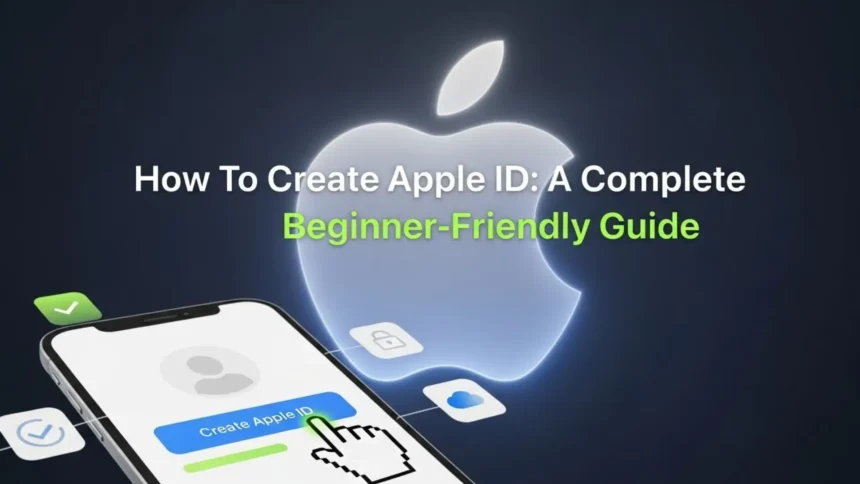
How To Create Apple ID? First step to unlocking everything inside your iPhone, iPad, or Mac. Whether you want to download apps, back up your data, or sync your photos, you can’t do any of it without an Apple ID. This guide walks you through the entire process in the simplest way possible.
- What Is an Apple ID?
- Why Do You Need an Apple ID?
- How To Create an Apple ID
- How To Create Apple ID on iPhone
- How To Create Apple ID on MacBook
- Creating an Apple ID Without a Credit Card
- How To Change or Reset Your Apple ID Password
- Common Issues When Creating a New Apple ID (With Solutions)
- Verification Email Not Received
- “Apple ID Already in Use” Error
- Forgotten Password Recovery
- Two-Factor Authentication or Code Not Received
- Best Security Practices for Your Apple ID
- Conclusion
- FAQs
A simple, step-by-step guide to creating your Apple ID and unlocking every Apple service.
Overview
Creating an Apple ID is the first step to accessing all Apple services, from the App Store to iCloud. This guide explains what an Apple ID is, why it’s essential, and how you can create one on an iPhone or MacBook with simple, beginner-friendly steps. You’ll also learn how to set up an Apple ID without a credit card, fix common setup issues, reset your password, and follow the best security practices to protect your account.
What Is an Apple ID?
An Apple ID is your personal account for using all Apple services. It connects you to iCloud, the App Store, Apple Music, FaceTime, iMessage, and more.
Once you sign in, your data syncs across all your devices automatically.
Why Do You Need an Apple ID?
You need an Apple ID to:
- Download apps from the App Store
- Back up photos, contacts, and files using iCloud
- Use FaceTime and iMessage
- Track devices using Find My
- Buy subscriptions such as iCloud storage or Apple Music
- Sync everything between your Apple devices
Without it, your device becomes extremely limited.
How To Create an Apple ID
Before you start, make sure you have:
- A working email (Gmail works perfectly)
- A strong password
- A phone number for verification
- Internet connection
You can create an Apple ID on iPhone, iPad, MacBook, or even a Windows PC.
How To Create Apple ID on iPhone
Follow these simple steps:
- Open Settings on your iPhone.
- Tap Sign in to your iPhone at the top.
- Select Don’t have an Apple ID or forgot it?
- Choose Create Apple ID.
- Enter your name and date of birth.
- Add your email (or choose a free iCloud email).
- Create a strong password.
- Enter your phone number for verification.
- Agree to Apple’s terms and conditions.
- Verify your email to complete the setup.
Your Apple ID is now ready to use.
How To Create Apple ID on MacBook
Here’s how you can do it on a Mac:
- Open the Apple Menu and go to System Settings.
- Click Sign In at the top.
- Select Create Apple ID.
- Enter your name, email, and password.
- Add your phone number for security.
- Verify the code sent to your phone.
- Confirm your email.
Once done, your Mac will automatically sign in with your new Apple ID.
Creating an Apple ID Without a Credit Card
Many people prefer creating an Apple ID without linking payment details. You can do that easily:
- Open the App Store
- Try downloading any free app
- When asked to sign in, select Create New Apple ID
- Under payment options, choose None
This method works on both iPhone and MacBook.
You might be interested: New Software Oxzep7 Python Upgrade Guide: Everything You Need to Know
How To Change or Reset Your Apple ID Password
How To Change Your Apple ID Password
You can change your password anytime:
- Open Settings on your iPhone.
- Tap your name at the top.
- Select Password & Security.
- Tap Change Password.
- Enter your device passcode and set a new password.
You can also change it from Apple’s website by signing in to appleid.apple.com.
How To Reset Your Apple ID Password
If you forgot your password:
- Go to Settings → Password & Security.
- Tap Reset Password.
- Use your phone number or device passcode to recover it.
If you don’t have access to your device, visit iforgot.apple.com and follow the steps for account recovery.
Common Issues When Creating a New Apple ID (With Solutions)
Verification Email Not Received
- Check your spam or junk folder.
- Tap Resend Email.
- Make sure your email address is entered correctly.
- Add [email protected] to your trusted senders.
“Apple ID Already in Use” Error
This usually means:
- You created an Apple ID before and forgot.
- You used the same email with another device.
Visit iforgot.apple.com to recover it.
Forgotten Password Recovery
Use the recovery page to reset your password using your phone number or trusted device.
Two-Factor Authentication or Code Not Received
- Make sure your SIM is active.
- Try sending the code to a trusted device.
- If still not working, update your trusted phone number from another device or Apple’s website.
Best Security Practices for Your Apple ID
Follow these tips to keep your Apple ID safe:
- Use a strong, unique password
- Turn on two-factor authentication (2FA)
- Avoid using public Wi-Fi when creating or signing in
- Keep your recovery phone number and email updated
- Review your Apple ID settings regularly
Your Apple ID stores your personal data, so protecting it is essential.
Conclusion
Creating an Apple ID is simple once you know the steps. It gives you access to all Apple services and keeps your data synced and secure. Whether you’re using an iPhone or a MacBook, follow the steps above and complete your setup in minutes.
Just remember to keep your password safe and your verification details updated.
FAQs
Is my email address my Apple ID?
Yes, your Apple ID is usually your email address.
Can I use Gmail for Apple ID?
Absolutely. Gmail works perfectly.
Can I remove my Apple ID from my iPhone?
Yes, go to Settings → tap your name → Sign Out.
Why is my Apple ID not active?
It may be unverified, locked, or suspended for security reasons. Sign in at appleid.apple.com to fix it.