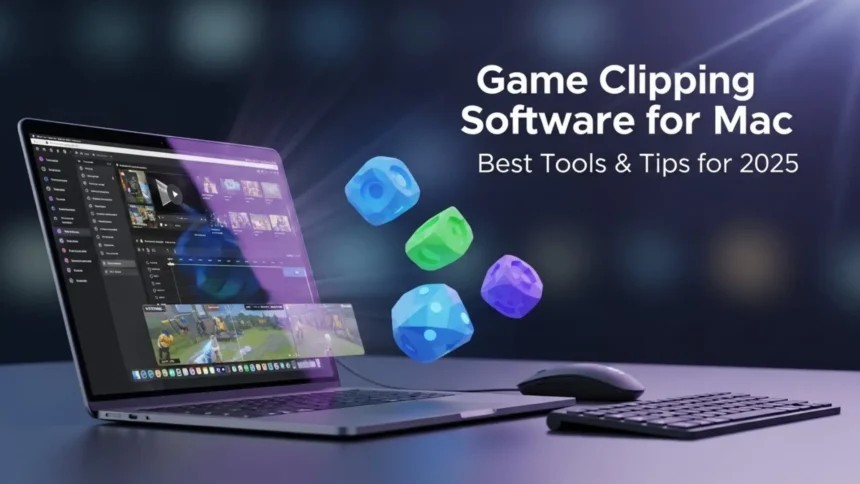
Game clipping has become an essential part of gaming culture. Whether you want to share epic wins, funny moments, or tutorials, having the right software on your Mac can make all the difference. This guide explores the best game clipping tools for Mac what to look for in a clipping software, and tips to optimize your Mac for smooth recording.
- Overview
- Understanding Game Clipping on Mac
- What Makes a Great Game Clipping Software?
- Top Game Clipping Software for Mac in 2025
- 1. OBS Studio
- 2. Capto
- 3. QuickTime Player
- 4. ScreenFlow
- 5. Movavi Screen Recorder
- 6. Snagit
- 7. Wondershare DemoCreator
- 8. CleanShot X
- Comparison of the Best Tools (Quick Overview)
- How to Optimise Your Mac for Smooth Game Clipping
- The Future of Game Clipping on macOS
- Final Thoughts
- FAQs
Want to capture your best gaming moments on a Mac without lag or headaches? This guide shows you exactly which tools deliver smooth, high-quality clips every time.
Overview
Game clipping has become a must-have skill for modern gamers, especially those who share highlights, tutorials, or reactions online. But Mac users often struggle to find software that offers smooth performance, sharp video quality, and easy editing. This article breaks down the best game clipping software for Mac in 2025, compares their features, and explains what makes each tool worth using. You’ll also learn how to optimize your Mac for flawless recording and see where game clipping on macOS is headed next. Whether you’re a casual gamer or a content creator, this guide gives you everything you need to record great clips effortlessly.
Understanding Game Clipping on Mac
Game clipping is the process of recording specific moments of gameplay rather than the entire session. Unlike full-length streaming, clipping allows gamers to focus on highlights, making content more engaging and easier to share. Mac users often face unique challenges like system optimization and compatibility, so choosing the right software is key.
What Makes a Great Game Clipping Software?
When selecting a game clipping tool for Mac, consider the following factors:
- Performance Efficiency: A good software should record smoothly without slowing down your Mac or affecting gameplay.
- High Video Quality: Crisp visuals are crucial, especially if you plan to upload to platforms like YouTube or Twitch.
- Ease of Use: Intuitive interfaces save time and make clipping more enjoyable.
- Built-In Editing Tools: Quick trimming, annotation, or effects help you polish clips instantly.
- Smart Storage & Compression: Efficient compression keeps file sizes manageable without losing quality.
Top Game Clipping Software for Mac in 2025
1. OBS Studio
Key Features:
- Free and open-source
- Supports high-resolution recording and live streaming
- Multiple input sources
Why It’s Great for Mac Users:
OBS Studio is a favorite among gamers due to its customization and reliability. Even on Macs, it can handle complex recording setups without compromising performance.
2. Capto
Key Features:
- Screen and webcam recording
- Easy annotation tools
- Built-in video editor
Why It’s Recommended:
Capto is perfect for gamers who want a simple, all-in-one solution. Its editing tools let you add highlights, captions, and effects quickly.
3. QuickTime Player

Key Features:
- Built-in to macOS
- Simple screen recording
- Minimal system impact
Why It’s Still Useful:
QuickTime may lack advanced features, but its simplicity makes it ideal for quick clips or low-impact recording sessions.
4. ScreenFlow
Key Features:
- Advanced editing options
- High-quality screen capture
- Multi-track timeline
Why It Stands Out:
ScreenFlow combines recording and professional-level editing in one app. Gamers who want polished clips will find it extremely useful.
5. Movavi Screen Recorder
Key Features:
- Fast recording
- Supports multiple formats
- Easy editing tools
Why It’s Worth Considering:
Movavi offers a balance between performance and usability, making it suitable for both casual and semi-professional content creators.
6. Snagit
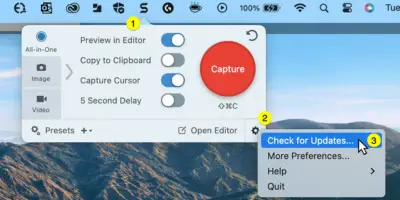
Key Features:
- Quick screenshot and video capture
- Easy annotation
- Lightweight software
Why It Works for Gamers:
Snagit is ideal for short, annotated clips. It’s perfect for tutorials or sharing tips alongside gameplay highlights.
7. Wondershare DemoCreator
Key Features:
- High-quality recording
- Built-in editing and effects
- Supports voiceovers and webcam
Why Gamers Love It:
DemoCreator is great for gamers who want to add commentary or reactions to their clips without switching software.
8. CleanShot X
Key Features:
- Screen recording with minimal setup
- Cloud storage integration
- Simple interface
Why It’s a Hidden Gem:
CleanShot X may not be as famous, but it’s fast, lightweight, and perfect for gamers who need quick, high-quality clips.
Comparison of the Best Tools (Quick Overview)
| Software | Video Quality | Editing Tools | Ease of Use | Mac Optimization | Price |
|---|---|---|---|---|---|
| OBS Studio | High | Moderate | Medium | Excellent | Free |
| Capto | High | High | High | Good | Paid |
| QuickTime Player | Medium | Low | Very High | Excellent | Free |
| ScreenFlow | High | Excellent | High | Good | Paid |
| Movavi Screen Recorder | High | Moderate | High | Good | Paid |
| Snagit | Medium | Moderate | High | Good | Paid |
| Wondershare DemoCreator | High | High | High | Good | Paid |
| CleanShot X | High | Low | High | Excellent | Paid |
How to Optimise Your Mac for Smooth Game Clipping
To avoid lag or poor-quality clips, follow these tips:
- Close Background Apps: Free up memory and CPU resources for recording.
- Use External Storage: Save clips to external drives to avoid filling your Mac’s internal storage.
- Adjust Recording Resolution: Lower resolutions can help maintain smooth performance during gameplay.
- Enable Game Mode (if available): Some Macs or apps allow prioritizing gaming performance.
- Keep macOS Updated: Updates often improve performance and compatibility with recording software.
You might be interested: Messaging Security Agent: Protecting Every Conversation in the Digital Age
The Future of Game Clipping on macOS
Game clipping on Mac is evolving rapidly. AI-assisted highlights, automatic clip detection, and cloud-based editing are expected to become mainstream, making it easier than ever to create professional-quality content.
Final Thoughts
Choosing the right game clipping software for Mac comes down to your needs: whether you want simplicity, advanced editing, or live streaming. OBS Studio and ScreenFlow remain top choices, but lightweight tools like CleanShot X and QuickTime Player have their unique benefits. By optimizing your Mac and picking the right tool, you can create high-quality clips effortlessly in 2025 and beyond.
FAQs
What is game clipping on Mac?
Game clipping means capturing short, specific moments from your gameplay instead of recording the entire session. It’s perfect for sharing highlights, tutorials, funny moments, or achievements.
Which is the best game clipping software for Mac now?
OBS Studio and ScreenFlow are top choices—OBS for its free, professional-level features and ScreenFlow for advanced editing. However, lightweight tools like CleanShot X and QuickTime Player are great for quick captures.
Does game clipping slow down my Mac?
It can, especially during heavy gameplay, but the right software and optimization (closing apps, lowering resolution, using external storage) can keep your Mac running smoothly.
Can I record gameplay on Mac without installing extra software?
Yes! QuickTime Player allows built-in screen recording. It’s simple and free, but limited compared to dedicated clipping tools.
How much storage does a game clip usually take?
It depends on the resolution and length. A 1080p, 60 FPS clip of 30 seconds can range from 50MB to 150MB. Tools with smart compression, like Capto or Movavi, help reduce file size.